



The chain “computer – audio interface – amplifier – headphones” is the basic signal chain of a home studio. The quality of the signal at the output and the convenience of everyday work depend on how it is assembled and how the levels are set.
A large share of the mistakes in such a chain comes down to two things: connection order and volume setting. In both, the signal can lose quality in places where it could be avoided. The cause is usually not the hardware, but the fact that the chain was assembled and set up at random.
The article breaks the chain down step by step: connection order, balanced and unbalanced lines, the influence of the mains, how the connector set depends on the device class, the amplifier’s operating modes and – as a separate large section – setting the volume at each stage of the chain.
The principles apply to any setup. The specific examples are given on the devices of a mid-budget home-studio setup – the Antelope Zen Go audio interface, the Topping L30 II and L70 amplifiers, the ADAM T7V monitors. The feature set of devices in this class is broadly the same: somewhere a connector differs, somewhere a switch is named differently, but the logic does not change. Transferring the scheme to other equipment is addressed in every block of the article.
🔗 Connection order
The chain consists of four stages, and the signal passes through them in turn. At each stage the signal changes its state – this is the key point, because the state of the signal determines which connector it must be fed into.
Computer – the source. It sends the signal to the audio interface in digital form – a stream of numbers over a USB cable. A digital stream cannot be fed straight into an analog amplifier: the amplifier works with voltage, not numbers, so the stream first passes through a DAC (digital-to-analog converter). The computer also has its own analog output – the built-in sound card, from which a signal can be fed into the amplifier, but that is a bad idea. Why – explained below.
Audio interface (sound card) – the translator. This is your DAC, which turns the stream of numbers into an analog electrical signal. At the output of the audio interface the signal is already analog, but weak – this is line level, the standard working level for passing a signal between pieces of equipment.
Amplifier – the power stage, the muscle of the chain. A line-level signal is not enough to properly drive headphones. The amplifier draws current from its own power supply and, thanks to its low output impedance, firmly controls the diaphragm – hence the crisp attacks and tight bass. What matters is not only its output power, but also its low output impedance, current headroom on peaks and a quiet noise floor (covered in detail in the section on the amplifier).
Headphones – the end of the chain, the load. Here the electrical signal turns into diaphragm motion – into sound.
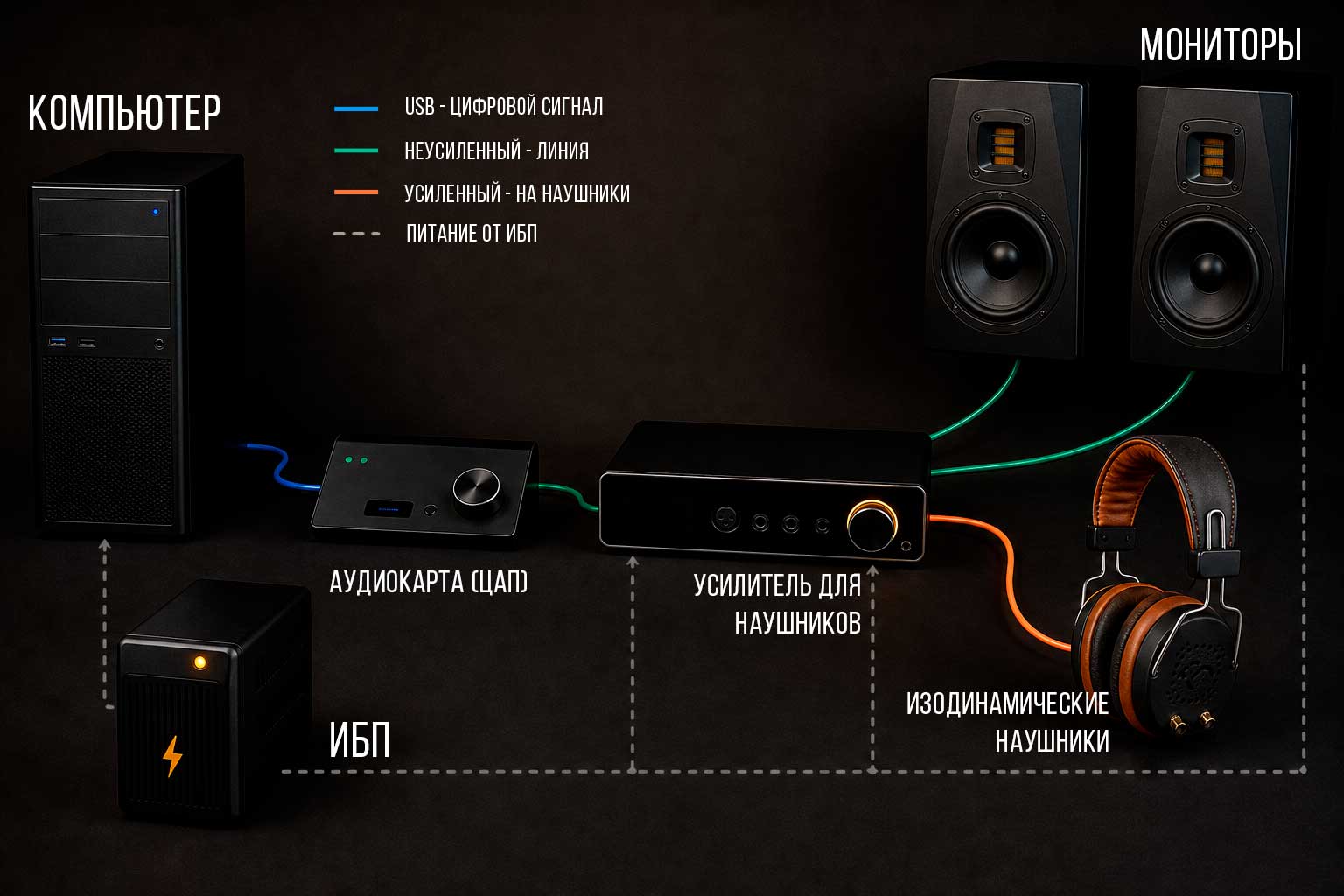
The whole chain: colored lines – the signal and its state along each section, dashed – power from the UPS – 🔍 click to enlarge
Why not “straight into the computer”
Every computer has its own audio output – a mini-jack into which headphones physically plug in. It is handled by an audio codec: a chip on the motherboard (on desktop PCs – usually from the Realtek family). The codec combines a DAC and a small headphone amplifier stage – both required blocks are there, and planar-magnetic headphones will play from the computer – but with insufficient headroom in level, noise and output current. The reason lies in the conditions under which this codec works.
The codec is soldered inside the PC case, right next to the processor, graphics card and power circuits. This is an electrically noisy neighborhood, and the codec picks up interference from it – hence the familiar hum or whine that changes with graphics-card load. The output impedance of the built-in output is usually high and not stated in the specifications: Realtek reference designs assume around 75 Ω, although it varies noticeably across different codecs and board revisions. For a low-impedance load like the Neuropunk M1 this is bad: a high output impedance forms a voltage divider with the headphones. On the 16 Ω M1, a source with 75 Ω delivers only a small fraction of the signal into the load – the available level (SPL) and current drop sharply, and the electrical matching gets worse (covered in detail in the section on the amplifier). The codec shares its power with the digital part of the board.
The audio interface moves the DAC and the analog section out of this noisy environment into a separate enclosure – with power decoupled from the digital circuits (from the USB bus or from its own adapter), and with a proper line output to the amplifier. The signal itself leaves the computer over USB in digital form, and a digital stream is almost immune to interference along the way. That is why this conversion is moved to where it is quiet.
Physical connection order
Connecting and first power-up are done in a particular sequence. It protects both the equipment and your hearing.
- All devices are powered off, power cables unplugged from the outlet.
- The signal cables are assembled: computer → audio interface (USB), audio interface (line output) → amplifier (line input), amplifier → headphones.
- Device power is connected.
- Power-up goes from source to sink: first the computer and the audio interface, the amplifier last. The amplifier’s volume is turned all the way down before switching on.
- Power-down is in reverse order: the amplifier is switched off first.
The logic is that, when power is applied to or removed from a device, a short pulse – a click – can travel down the chain. The amplifier is switched on last and off first: if it is already powered off at the moment of the click, the pulse will not reach either the headphones or the monitors.
Transferring this to your own setup
There are four stages in this chain, and the order is the same. Only the connectors between the stages change – which cable exactly connects the audio interface to the amplifier depends on their models. A separate section below is devoted to this.
⚖️ Balanced vs unbalanced connection
Between the audio interface and the amplifier the signal travels along a cable – a separate line for each channel (left, right) – and along the way the cable acts as an antenna, picking up interference from the surrounding equipment: the computer’s switching power supply, the graphics card, the monitor, the wiring in the wall. A signal can be carried over a cable in two ways, and they differ in how resistant they are to this interference.
Unbalanced – two conductors: signal and ground. The most common connector is RCA, the “cinch” plug. Interference picked up on the signal conductor adds to the signal, and the receiver gets them together. It can no longer separate them back out.
Balanced – three conductors: “hot,” “cold” and ground. In classic active balancing, the hot and cold carry the same signal, but on the cold it is inverted – a mirror copy of the hot. (There are also impedance-balanced outputs, where the cold does not carry a full copy of the signal; the line still rejects interference – because what matters is not signal symmetry but the equal impedance of the legs relative to ground.) The connectors are XLR and TRS (a jack with two rings on the plug).
How balancing removes interference
Both wires of a balanced line lie close together, so interference is induced on them equally – it is one and the same pickup on the hot and on the cold. The signal on the wires, however, is mirrored.
At the input the receiver inverts the cold wire back and sums it with the hot. At this moment the following happens to the signal: the hot and the inverted cold are in phase, and when summed the signal doubles. With the interference it is the opposite: it was identical on both wires, but inverting the cold makes it opposite there, and when summed it is cancelled. The cancellation is not perfect: its depth is set by the CMRR parameter, and it is finite – it depends on the circuit, the cable and the accuracy of impedance matching. In a healthy system this is tens of decibels, which is enough to push the pickup below the level of the signal.
Formally this is common-mode rejection (CMRR): whatever lands on both wires equally is subtracted at the input – the more completely, the more precisely the impedances of the legs are matched.
Unbalanced adds the interference to the signal; balanced catches it equally on both wires and cancels it when subtracting – 🔍 click to enlarge
Where this is needed in the chain
A balanced connection is justified on any line between devices, especially a long one or one running near sources of interference: “audio interface → amplifier,” “amplifier → monitors.” An unbalanced RCA line is simpler, but defenseless against pickup. Even a very short desktop run does not automatically make it safe – an unbalanced cable can pick up hum even over tens of centimeters of length, for example from the graphics card or the PC power supply. A balanced line is protected from such pickup by its very construction.
What it costs
A balanced connection is not just the cable. The balanced cable itself is cheap. What is expensive is the balanced wiring of the whole chain: both the output of one device and the input of the other must be balanced, and inside each there are paired symmetric stages. Every balanced connector on every device adds noticeably to its price. That is why at the budget level there is usually no balancing at all, and it appears as the class of the devices grows.
If there is no balanced chain and the mains is noisy – part of the pickup is removed not by balancing, but by proper power and routing. That is the subject of the next section.
⚡ Interference and hum in the chain
Hum and interference in the chain come in three types – each with its own cause, its own character and its own cure:
| Type | How it sounds | How it is cured |
|---|---|---|
| 1. Mains interference | HF noise and crackle from the mains, depends on nearby appliances | power conditioner, UPS |
| 2. Ground loop | steady 50 Hz hum and harmonics (100, 150) | single power source, GND/LIFT, isolator |
| 3. Digital hash from the PC | high “modem-like” whine, drifts with graphics-card load | USB isolation, balanced line |
Type 1 – interference from the mains
The outlet supplies the devices with power, but along with the power comes electrical garbage down the wires. Part of the hum in the chain originates here.
🚰 An analogy – tap water
Water flows from the tap, but in an old building rust and sand come along with it. You can drink it, but it is risky. Better to install a filter that keeps the sediment to itself. A power conditioner does the same thing with electricity.
The 230 V 50 Hz mains is never perfectly clean. On top of the sine wave sit high-frequency disturbances from the switching power supplies of nearby appliances – chargers, LED lamps, the fridge. Voltage sags and surges happen.
A reasonable question: the audio interface is connected to the computer over USB – that is digital, and the pickup usually does not turn into the digital data itself. So where does the mains garbage in the DAC come from? The point is that USB carries not only data, but also power with a common ground – and it is through these that the noise reaches the analog section. The DAC and the analog part of the audio interface run not on USB data, but on a DC voltage, and that voltage is of mains origin: either from the audio interface’s own adapter in the outlet, or, if the audio interface is bus-powered, from the 5 V that the computer takes from its own power supply, which in turn takes it from the same outlet. Ripple and high-frequency garbage on this power get mixed into the analog signal at the DAC output – the block most sensitive to power cleanliness. That is how the mains reaches the sound, bypassing the digital USB.
A power conditioner removes high-frequency garbage from the power: the cleaner the power, the lower the noise at the analog output of the audio interface. A UPS (uninterruptible power supply) does more – it keeps the devices running through sags and brief outages, and depending on its topology also stabilizes and filters the voltage (the difference between the types is below).
🔋 The UPS – a backup supply for the studio
A power conditioner fights mains interference, but there is a separate class of problems it does not cover: sudden loss of the mains, prolonged voltage sags and surges. For a studio this is no longer about “hum,” but about protecting your work and your gear. An uninterruptible power supply (UPS) addresses exactly this.
What it gives you:
- It saves the project. When the power goes out, the computer shuts down instantly and hard. An unsaved DAW session is lost, and the file system or the project itself can be corrupted. A UPS gives you a few minutes to calmly save and shut down properly.
- It protects the gear. Voltage sags force the power supplies of the audio interface, DAC and amplifier to work at their limit; surges and pulses can destroy them. A UPS with the AVR function (automatic voltage regulation) pulls the mains back toward normal before it reaches the equipment.
- It removes the emergency click. A sudden loss of power drives the same pulse down the chain as an incorrect power-up sequence. A UPS does not let the mains “break off” abruptly.
Which type to get
A UPS comes in three topologies, and the difference is fundamental:
- Standby (off-line) – the cheapest, simply switches to the battery when the mains fails. The switchover is not instant, and it does not correct sags. A bit weak for a studio.
- Line-interactive with AVR – continuously stabilizes the voltage without draining the battery, and only switches to the battery when the power goes out. The optimal balance of price and protection – the working choice for a desktop studio.
- Online (double-conversion) – always powers the load through the inverter: zero switchover time and the cleanest possible output voltage. The best, but expensive, and often with its own fan noise – overkill for the home.
⚠️ Pure sine wave only
On battery, cheap UPS units output not a sine wave but a stepped “staircase” (modified/stepped sine). Power supplies with active PFC – and that includes computer PSUs and some audio gear – can behave unstably on such a waveform: hum, heat up more, rarely – even fail to start. There is no universal prohibition, but for studio gear a pure sine wave is preferable – it removes the compatibility question. In the specifications it is listed as “pure sine wave.”
What rating to get
There is no need to chase long runtime – the job of a UPS is not “to play for an hour without power,” but to let you calmly save and ride out short outages. A rough load estimate: a PC with a monitor, the audio interface and the amplifier – that is usually 300-400 W, plus active monitors (from 30 to 200 W per pair). With headroom, that is a UPS of 1000-1500 VA. If the monitors are powerful or the amplifier is class A – get one with headroom, not right at the limit.
The job of a UPS is protection and continuity of power: so that the chain survives a surge, a sag and a power outage. As a bonus, when the whole chain is powered from a single UPS, all devices share a common ground point – this reduces the risk of a ground loop (more on it below).
Type 2 – the ground loop
A separate and the most common cause of hum is the ground loop. It arises when two devices in the chain are connected by two paths at once: the signal cable and the ground of the outlets. If the devices are plugged into different outlets, the ground potential of those outlets differs slightly, a current flows around the resulting loop, and a hum at 50 Hz and its harmonics – 100, 150 Hz – appears in the headphones.
Ground loop: the signal cable and the different outlet grounds form a loop through which current flows – and that is the hum – 🔍 click to enlarge
The main ways to cure it:
- Single power source. The whole chain is plugged into one power conditioner or UPS. Then all devices share a common ground point, and the loop, as a rule, has nowhere to close. This is the first thing to do.
- Ground switch on the amplifier. The L70 has a GND/LIFT switch: in the LIFT position it transfers the amplifier’s signal (“chassis”) ground point to the connected equipment and breaks the loop. This concerns the signal ground, not the protective contact in the plug – the mains earth is not touched.
- Ground-loop isolator. An inexpensive adapter inserted into the signal cable: inside is an isolating transformer – the signal passes through it, while the direct ground connection is broken and the loop disappears. A ready-made solution when single power and a ground switch are unavailable.
When the apartment has no earth
A common case in residential housing – outlets with no working earth. Without earth the chassis of the gear have no common reference point, and pickup that has nowhere to drain to keeps showing up as hum. The right solution here is electrical: an electrician should earth the outlets.
What you must not do is remove or disconnect the earth contact in the plug to “get rid of the hum.” It will remove the hum, but the earth is in the mains as a safety measure, and removing it creates a risk of electric shock in the event of a fault. Hum is cured by ground decoupling, not by disconnecting the earth.
Type 3 – digital hash from the computer
The third type of hum is a high “modem-like” or chattering whine that changes along with the graphics-card load, and sometimes with mouse movement too. This is not a ground-loop hum (that is low and steady) and not the acoustic whine of the graphics card’s chokes – it is electromagnetic pickup from the computer’s digital section that has gotten into the analog signal.
Why it “drifts”: the source is the graphics card’s switching voltage regulators (VRM) and the digital supply current itself, which jumps along with load and computation. The frequency and spectrum of this garbage change with PC activity, so the ear hears not a steady tone but a shifting whine.
How it gets into the sound: via the common ground – most often through the USB ground. A bus-powered audio interface shares the computer’s noisy ground, and high-frequency garbage gets mixed into the analog after the DAC. A rarer path is the shield of an unbalanced RCA cable.
How to cure precisely this type (not to be confused with the loop):
- USB isolator. Galvanic isolation over USB – the most targeted means; it often requires a separate clean 5 V power supply.
- Balanced line audio interface→amplifier, where available – breaks the common path along the signal.
- Power the audio interface not from the USB bus, but from an external adapter; a different (rear) USB port; route the cable farther from the graphics card; ferrite rings on the cables.
A single power source and the GND/LIFT switch remove part of the ground-borne pickup, but the USB pickup specifically is only removed by USB isolation.
A minimum at no cost
Before any purchases: power the whole chain from a single extension strip – this usually gives a common ground and removes the loop; keep signal cables short; do not run them parallel to power cables; move external mains adapters away from signal cables – they radiate interference, and their position noticeably affects the hum level.
🔌 Connector set and device class
The set of connectors on a device – its “stack” – is directly tied to price. The more expensive the model, the more input and output options it has. This is a consequence of the circuitry: balanced stages, additional outputs and converters cost money and appear as the device class grows.
Chain connectors: which is balanced, which is unbalanced, which is digital – 🔍 click to enlarge
| Class | Audio interface | Amplifier |
|---|---|---|
| Budget | USB, RCA or mini-jack output | RCA input and output, 6.35 mm headphone output |
| Mid | USB, balanced TRS outputs, a separate monitor output | RCA and XLR inputs, 6.35 mm and balanced 4.4 mm headphone outputs |
| High-end | USB, balanced XLR/TRS inputs and outputs, several monitor buses | Balanced XLR inputs, a full set of headphone outputs, including 4-pin XLR |
Why this matters when buying
The connectors of two adjacent stages must match. A balanced line works only if both ends are balanced – both the output of the audio interface and the input of the amplifier. A balanced connector on just one end gives nothing: the line works as unbalanced. That is why you check the connector set before buying, not after: it determines which connections are even possible in the assembled chain.
At the budget level there is usually no balancing – only RCA and mini-jack. For a desktop chain this is a workable option. But if long lines to monitors are planned or the chain is noisy, models with balanced connectors are worth considering right away.
🎧 Why a dedicated amplifier
The most common question: the computer and the sound card have a headphone output with a supposedly built-in amplifier – will it handle the M1? In the general case, no. First, there are no desktop sound cards on the market with a full-fledged amplifier. The current exception is the Topping E2x2, E4x4 line. But even there the amplifier is “mobile” – it is powered from the same USB and has no separate PSU plugged into the 230 V mains. Second, the main reason does not come down to volume and is not at all obvious.
“16 Ω” does not mean “an easy load”
The built-in output of a computer or sound card delivers a few to a few dozen milliwatts into the headphones. A counter-argument arises: the M1’s impedance is only 16 Ω, the load is low – so they must be easy to drive. In reality the dependence is the opposite. Loudness is determined not by impedance, but by the sensitivity of the headphones; a low impedance, meanwhile, demands more current from the source (I = U / R). The M1’s planar-magnetic diaphragm is large and light, and it is moved by current across its whole area. The combination “16 Ω plus moderate sensitivity” is the least convenient load for a weak output: it demands both voltage and current at once.
loudness, voltage, current and power are linked – at moderate volume this is milliwatts, but on peaks you need headroom
What determines the result
- Low output impedance. On a 16 Ω load the output acts as a voltage divider: the higher its impedance, the less signal reaches the headphones. At 1 Ω the loss is about −0.5 dB, at 20 Ω it is already −7 dB, at 75 Ω – −15 dB; with a high-impedance output you lose both loudness and peak headroom. A low impedance additionally helps to damp the diaphragm’s back-EMF – attacks are crisper, bass tighter; on planars with a flat impedance curve this effect is weaker than on dynamic headphones, but the level loss remains in any case.
- Current and power headroom on peaks. A musical signal consists of bursts (transients), and a peak demands instantaneous current. For low-sensitivity planars, peaks of 110-115 dB are no longer milliwatts but on the order of a hundred or two mW into 16 Ω. A weak output sags or starts to distort at such a peak; a dedicated amplifier (or an interface with power headroom) delivers this current with margin.
- A quiet noise floor. What matters is not the “loud” SNR in dB from the marketing, but the absolute noise level relative to the headphones’ sensitivity.
Hence the role of the rated power. In the specifications an amplifier shows a few watts (for example, 3.5 W into 16 Ω), an interface output – hundreds of milliwatts, but this figure by itself says little: the stated maximum is reached at the limit, and without specifying the load it is meaningless. What decides is not it, but the output’s ability to deliver current on a peak at a low impedance. That is why comparing outputs by a single watt figure is incorrect – but treating power as insignificant is wrong too: on a 16 Ω low-sensitivity load there must be enough of it precisely on the transients.
Output impedance: typical values
The spread is large. The built-in sound card – around 75 Ω, typical interfaces (Antelope Zen Go, Audient iD4) – about 20-27 Ω, a dedicated amplifier – fractions of an ohm (the Topping L70 around 0.1 Ω). On a 16 Ω load this translates directly into level loss: from an interface at 20-27 Ω about 7 dB less reaches the M1, from the onboard output at 75 Ω – 15 dB, whereas from an amplifier – a fraction of a decibel. The exception among interfaces is the Topping E2x2/E4x4: they are built on an “amplifier” topology and give about 1 Ω, that is, their output is almost like that of a dedicated amplifier, but even there it has its own nuances.
The M1 headphones are a 16 Ω load (constant). On the left – the source’s own output impedance (Zout): on a 16 Ω load it acts as a divider, the lower the Zout, the smaller the loss. On the right – the maximum power the source delivers into this 16 Ω load. A dedicated amplifier has Zout tens of times lower and power several times higher. The rated figures are real, the conversion to 16 Ω is approximate; what matters is the ratio, not the exact value – 🔍 click to enlarge
On the M1 the difference in the specs is heard like this. A “weak output” is the PC onboard or an ordinary interface; a “full-fledged” one is a dedicated amplifier or an interface with an amplifier output (Topping E2x2/E4x4).
| How it sounds | Weak output | Full-fledged output |
|---|---|---|
| Bass | loose, boomy, smeared | tight, controlled, with a clear attack |
| Hits and transients | smeared, blur together in dense passages | fast and distinct |
| Loudness on peaks | no headroom, distortion and clipping in loud passages | keeps its headroom, the peak is not compressed |
| Overall character | quiet, lifeless, flat | loud, controlled, dynamic |
When the built-in output is enough
For sensitive in-ear monitors (IEMs) and high-impedance over-ear models, the output of a sound card or interface is usually enough: they need voltage, not current. The difficulty is precisely with low-impedance, low-sensitivity planars like the M1: they need an output with low impedance, current headroom and a quiet noise floor. This is provided by either a dedicated amplifier or an interface with an amplifier output (Topping E2x2/E4x4); an ordinary built-in computer output or a budget sound card – no. That is why the amplifier stands in the chain as a separate stage.
🎚️ Amplifier
Why a dedicated amplifier is needed at all has been covered above. Here is the practical part: which amplifier is convenient as the hub of the chain and how to set it up.
We recommend Topping’s L series for the four reasons below. (Using this particular manufacturer is not mandatory – you can take any amplifier you like.)
- Sound circuitry. At its core are NFCA modules (Nested Feedback Composite Amplifier), the same as in the flagship A90, plus a low output impedance, important for low-impedance planars.
- Practically zero distortion. A noise floor of about 0.3 µV, a dynamic range of 144 dB on the L30 II and 146 dB on the L70, THD+N on the order of 0.00006% – to the ear this is absolute silence, in the pauses the amplifier gives away nothing.
- Broad connectivity. Switching the outputs turns the amplifier into a monitoring control hub – headphones and monitors on one volume knob.
- Price. These are high-quality devices for minimal money.
Below are two popular models.
Topping L30 II – the base model
The L30 II is the entry model of the series. Input and output are RCA, plus a 6.35 mm headphone output. There are no balanced connectors: the input is unbalanced only, over RCA. This is worth keeping in mind – in a noisy environment an unbalanced input can pick up interference. This is removed by a single power source for the chain and short cables (see the section on power). In a quiet, carefully assembled desktop chain the L30 II works cleanly.
The L30 II is controlled by a three-position OFF / HPA / PRE switch. It combines the power switch and the output selection:
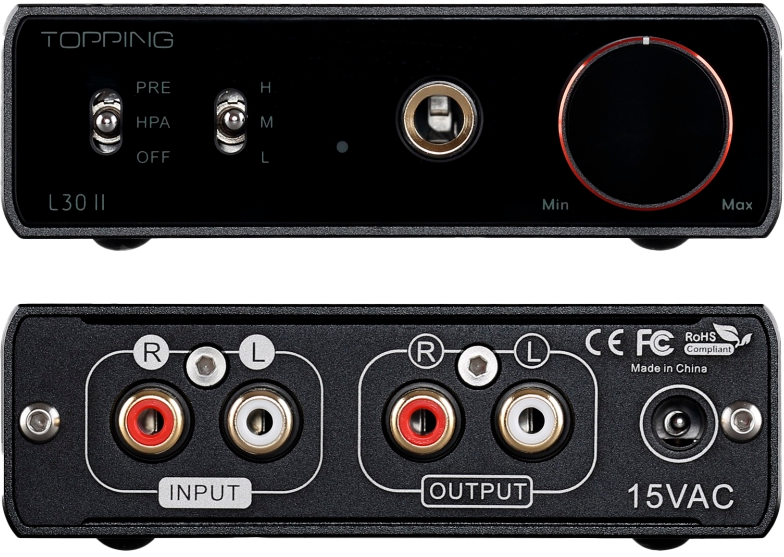
| Position | What it does |
|---|---|
| OFF | Amplifier off |
| HPA | Amplifier on, the signal goes to the headphones |
| PRE | Amplifier on, the signal goes to the RCA output – on to the monitors |
The outputs are mutually exclusive: at any moment the sound goes either to the headphones or to the monitors. The volume of both is meanwhile controlled by a single amplifier knob.
In PRE mode the amplifier passes the line-level signal to the monitors without amplifying it – the active monitors do the amplifying themselves.
🎛️ Two volumes instead of one
Usually headphones and monitors are two independent volume sources. To switch from one to the other, the producer turns down the volume on one, turns it up on the other, tweaks it, double-checks. Every switch is fiddling with several knobs.
The L30 II removes this tedious routine, because it works as a selector. The monitors connect to the RCA output, the headphones – to the jack. The output switch toggles between them, and the volume knob is the same for everything. One click – and the sound source has changed, staying at the same volume.
The amplifier as a monitoring switch – 🔍 click to enlarge
Setting up seamless switching
For the headphones and monitors to play at the same volume, and for the HPA↔PRE switch to be seamless, their levels are matched once during setup:
- The monitor volume is turned to zero. On most studio monitors it is adjusted by a knob on the rear panel.
- The L30 II switch is set to HPA. The amplifier knob is used to set a comfortable volume in the headphones.
- The switch is set to PRE. The amplifier knob is not touched at this point – its position is fixed.
- The volume is raised on the monitors themselves until they play as loud as the headphones did.
- Done! The volume of both sources is the same, and switching between them becomes comfortable.
After these steps, in everyday work the volume of all sources is controlled by a single knob on the amplifier. This is the most convenient and ergonomic way to work in the studio, and it saves a lot of time, which any producer will appreciate.
Topping L70 – the extended model
The L70 is a model a class above. It has balanced XLR inputs in addition to RCA, balanced headphone outputs (4-pin XLR and 4.4 mm) alongside the regular 6.35 mm, and a relay-based R2R volume attenuator.
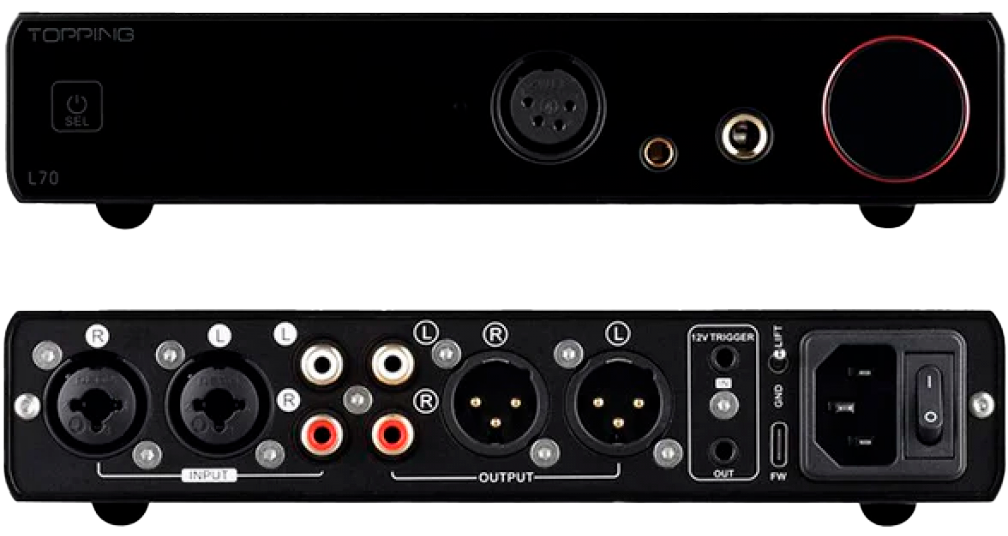
Output switching on the L70 is arranged differently from the L30 II: the modes are switched by pressing and holding the volume knob for 1 sec – each press turns on the next mode in a cycle: 1) monitors (pre-out), 2) monitors and headphones at once, 3) headphones. The middle “both at once” mode is a domestic convenience (listening both in headphones and on monitors), not a production tool. The downside for work: going from headphones to monitors is not one click, as on the L30 II’s physical switch: you have to press the knob, passing through the intermediate mode.
The volume attenuator on the L70 is a relay-based R2R: a set of resistors switched by relays. Volume control here is fully analog and does not touch the digital part of the signal. Why this is crucial – in the next section.
Which to choose
For a desktop chain with headphones the base L30 II is enough: it covers both monitor switching and the one-knob principle. The L70 is taken when you need balanced lines, the “headphones and monitors together” mode, or power headroom.
🔥 How not to destroy the amplifier
The L30 II and L70 themselves are reliable units. Below is what actually destroys an amplifier, in descending order of likelihood.
⚠️ Power: only the original adapter
The most common manageable “killer” of the L30 and L30 II is the wrong power supply. They run on an unusual adapter of 15 V AC (alternating current). Another supply – for example 5 or 12 V DC from another device (even the E30 II DAC) – burns out the regulators and chips instantly. Only the original adapter; if similar ones are lying nearby – label them. The L70 runs on an internal supply and is free of this ailment. Against mains surges, either of them is run through a power conditioner or a UPS.
The original L30 – check the serial number
The very first L30 (2020) had no protection against either DC or static discharge: on an internal fault it could put DC on its output and fry both itself and the headphones, and in a dry climate it was killed by static on touch. Topping fixed this by serial number – 2021 and above are safe, 2011 and below must not be used (they were replaced under warranty). If you are buying a used L30 specifically without the “II” – check the serial. The L30 II and L70 are already reworked versions without this ailment.
General connection hygiene
These are not frequent causes of death for these particular models, but sensible habits for any amplifier:
- Power sequence. The amplifier is switched on last and off first, the volume before switching on – at minimum (covered in detail in the section on connection order).
- Switching under load. Do not yank the headphone jack with the volume up – a partially inserted plug briefly shorts the output. Into a balanced output (XLR / 4.4 mm) – only a balanced cable: a “balanced→unbalanced” adapter shorts a leg to ground and on balanced amplifiers can fry the output.
- Gain. A high gain by itself does no harm (how to choose it – in the section on Gain); what harms is constant clipping.
- Ventilation. The L70 gets noticeably warm, and the case of such amplifiers itself serves as a passive-cooling heatsink – do not cover it, do not place other devices on top, do not wedge it into a niche without airflow.
- Do not short the output. Do not let the output connectors touch metal or each other.
📊 Gain setting
Gain is the amplification factor, switched in steps. The higher the gain, the louder the sound at the same knob position and the higher the maximum available at the output: the rated power (on the L30 II this is 3.5 W into 16 Ω) the amplifier delivers only at high gain – at low gain the source simply will not drive it to these levels. At the same time, the gain itself adds no current or power headroom – it only shifts the working level. That is why it is chosen to match the headphones’ sensitivity (exactly how – below).
🚗 An analogy – steering sensitivity
Different cars have differently tuned steering: in one it is three turns lock to lock, in another one and a half. You can drive both, but with quick steering it is easier to overshoot, while with slow steering you have to turn more. Gain is the same sensitivity adjustment, only for the volume knob.
In both recommended models the gain is switched in steps:
| Model | Gain positions |
|---|---|
| Topping L30 II | L: −14 dB · M: 0 dB · H: +16.5 dB |
| Topping L70 | Low: 0 dB · High: +13.8 dB |
How to choose the gain
Gain is chosen by the headphones’ sensitivity, not by their impedance: low-impedance does not mean “loud.” The rule: set the minimum gain at which there is volume to spare, and the working knob position falls into a comfortable range (roughly the middle of its travel). If you cannot get enough volume even near the top edge – go one step up in gain. Quiet sensitive models are not considered here: the chain is built around planars.
The Neuropunk M1 is a telling example: despite the low impedance (16 Ω), the headphones are of moderate sensitivity, so they require noticeable amplification. In practice the M1 work comfortably at high (up to maximum) gain on both the L30 II and the L70. Thanks to the extremely low noise of the L series, high gain adds no hum.
🔊 Volume at each stage
There are several places in the chain that have volume: the computer, the audio interface, the amplifier. A properly assembled chain is arranged so that one live control remains – the amplifier knob. The rest are set once and never touched again. Each stage is examined below.
Computer: 97% on Windows, 100% on Mac
The operating system volume is kept almost at maximum. On macOS – 100%. On Windows – 97%, not 100%. Additionally, in the audio device properties the format is set to 24-bit. For practice this is enough; the explanation is below.
In detail, mechanism 1 – bit depth
Digital volume reduction is multiplying each sample (signal value) by a number less than one. The result must again be fitted into an integer format of a fixed bit depth to be sent to the DAC, and in this rounding part of the information is lost: roughly, every 6 dB of attenuation is a loss of about one bit of effective bit depth.
There is an important caveat here. In modern systems – Windows from Vista on (including 10 and 11) and macOS – the internal audio chain works in a 32-bit floating-point format (32-bit float). In it, volume control is transparent, with no loss. Loss is possible only at the last step – conversion to an integer for the DAC. And here the device format decides: at 24 bits there is 48 dB of headroom, and the signal reaches the DAC at full resolution even at heavily reduced volume. At 16 bits this step becomes the bottleneck. Hence the practical action – set 24-bit in the audio device properties.
Dithering (dithering) is a related technique. When bit depth does have to be reduced, dithering adds a specially calculated micro-noise to the signal, which smears the rounding error. Distortion correlated with the signal turns into a smooth, harmless noise floor. This is the standard way to make a bit-depth reduction clean.
In detail, mechanism 2 – the Windows limiter and intersample overs
The second mechanism is not related to bit depth and explains why on Windows exactly 97% is recommended, not 100%.
A peak limiter is built into the Windows audio stack from Vista on – CAudioLimiter. Its threshold is about −0.13 dBFS. It is intended as protection against clipping, but on a hot signal it itself starts to nonlinearly squeeze the peaks, and this is audible as light compression distortion.
The second reason is intersample overs. A digital signal is a set of samples, but the real analog signal that the DAC reconstructs is a smooth curve between them. On peaks the curve can go above the level of the samples themselves, by +0.5…+3 dB above 0 dBFS. At Windows volume 100% such overshoots hit the ceiling.
Both mechanisms are removed the same way – the signal level is pulled slightly away from the ceiling. The Windows slider at 97% (it is nonlinear, and these 3% give noticeable headroom) takes the signal out of the CAudioLimiter trigger zone and leaves room for intersample overs.
On macOS this problem does not exist as a class: Apple does not build a limiter into the system audio chain. That is why on a Mac the volume is kept at 100%.
This rule is about the system mixer
The 97% applies to sound that goes through the Windows system mixer (shared mode): system sounds, the browser, most players. It is precisely on this path that CAudioLimiter works, and it is audible as clipping at 100% – this is easy to verify by moving the system slider. A DAW set to the audio interface’s ASIO driver goes around the system mixer: the system slider does not affect it, and the level headroom is set on the project’s master bus (controlled by true-peak), not by Windows percentages.
Audio interface: 100%, with no digital attenuation
The audio interface also has volume, and in most cases it is a digital control – which means everything said about bit depth applies to it. The rule is simple: the digital part of the audio interface works with no attenuation.
On the Antelope Zen Go it looks like this. In the mixer the Computer Playback faders are at 0 dB – no digital attenuation. The output to the amplifier goes over RCA (Line Out), and the level of this output is set by the Line Out Trim parameter in the audio interface settings (range 14-20 dBu). The higher the output level, the better the signal-to-noise ratio at the amplifier’s input, so the Trim is raised – but not blindly to maximum: 20 dBu is about 7.75 V, a very hot level for a domestic RCA input. The reference point is the highest Trim at which the amplifier’s input is not overloaded and its knob stays in a comfortable range. The volume from there is controlled by the amplifier.
The bottom line: whatever audio interface you have – its volume should be 100%.
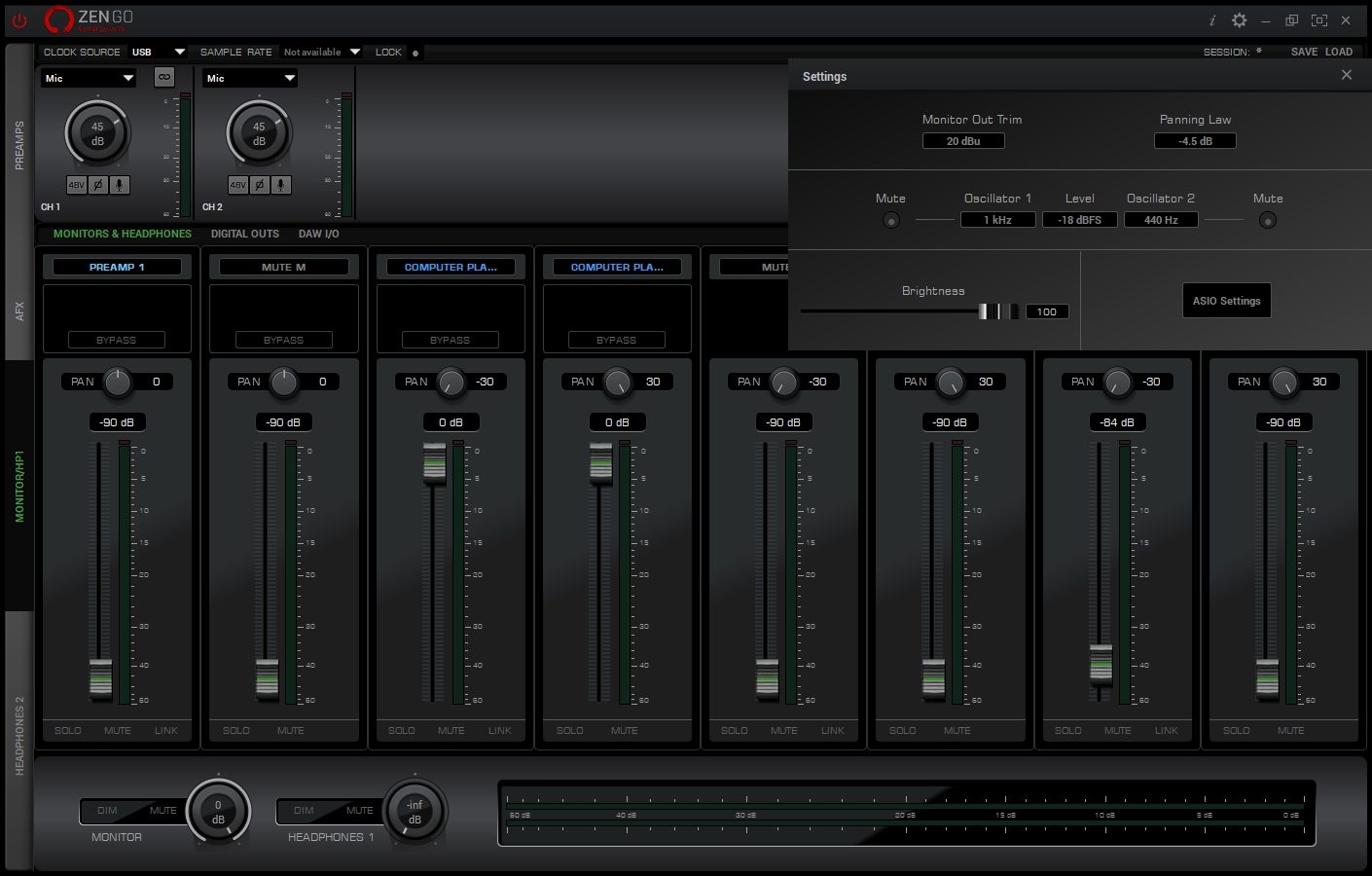
Antelope Zen Go mixer: the Computer Playback faders are at 0 dB – there is no digital attenuation
How manufacturers handle this
Digital volume reduction is a known engineering problem, and it is solved in different ways. RME uses an internal DSP of increased bit depth (42 bits), and the control stays transparent. SSL fits DACs with a 32-bit architecture – the real effective bit depth is always lower than stated, but there is enough digital-math headroom that turning down the volume gives no audible loss. In expensive devices they fit analog relay attenuators, where the volume is controlled after the DAC and quantization is not involved at all. The takeaway for the user is one: do not touch the digital volume on the audio interface, it is set once to maximum for the line-level signal, and the control is left to the analog amplifier.
Amplifier: the only live control
The amplifier has an analog volume control – a potentiometer or, as on the L70, a relay-based R2R attenuator. Analog attenuation works after the DAC, with the finished analog signal, and does not touch bit depth. Turning the volume down here can be done with no loss. That is why the everyday control is left to the amplifier.
The volume mode at each stage of the chain – 🔍 click to enlarge
A chain assembled by these rules leaves the user one live control. The computer – 97% or 100%, set once. The audio interface – 100%, set once. From there the volume lives only on the amplifier knob. And if the amplifier also works as a monitoring switch (the section on the L30 II), then one knob controls the volume of both the headphones and the monitors.
✅ Checklist
A summary of the article in the form of checks. The assembled chain is run through the points once – after that it works stably.
Connection
- The chain is assembled in order: computer → audio interface → amplifier → headphones.
- The signal cables are assembled first, then the power is connected.
- Power-up goes from source to amplifier, power-down in reverse order.
Power
- The whole chain is powered from a single conditioner or UPS – the devices share a common ground.
- Signal cables are short and do not run parallel to power cables.
- If there is a hum around 50 Hz, check for a ground loop – single power source or the GND/LIFT switch.
Lines
- Long lines are balanced (XLR or TRS). For a short desktop line RCA is enough.
- The connector sets of adjacent devices match – a balanced line requires balancing at both ends.
Amplifier
- The gain is chosen so that the working volume falls in the middle of the knob’s travel.
- If the amplifier switches the monitoring, the headphone and monitor levels are matched once.
Volume
- System volume: Windows – 97%, macOS – 100%.
- Audio device format – 24-bit.
- The audio interface works with no digital attenuation: faders at 0 dB, output trim raised to maximum, 100%.
- Everyday volume control – only on the amplifier knob.
A chain assembled by these points does not lose signal quality at the junctions between the stages of the chain and leaves one live control in operation. This is its maximum effective working state.